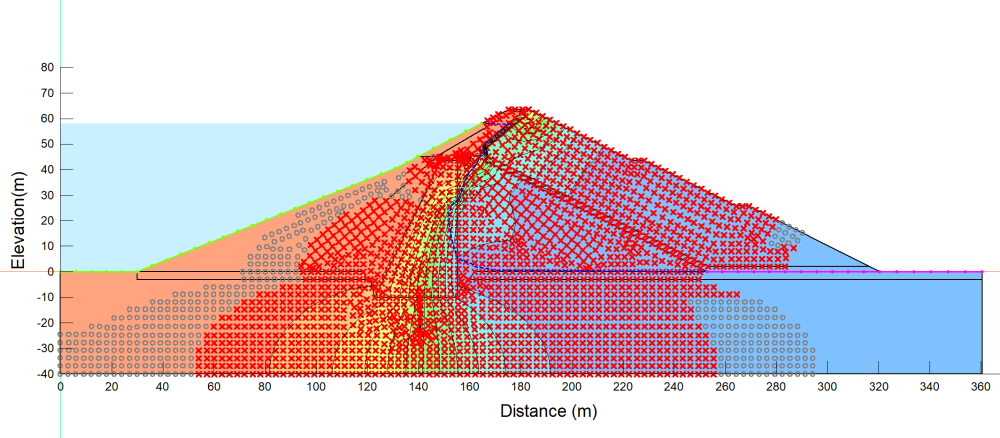
About how to correct the red “X” symbols in GeoStudio software.

Hello everyone, I hope you are all doing well and staying healthy. I have a question regarding how to correct the red “X” symbols in GeoStudio software.
Question Regarding Red X Marks and Gray Circles in GeoStudio SEEP/W
What do the red "X" marks and gray circles represent in GeoStudio? What is the proper method to remove or correct them?
I have been working on an earth dam raising project for a long time, and I am currently analyzing the raised dam using GeoStudio SEEP/W. After running the seepage analysis, a large number of red X marks and other symbols appear on the model geometry.
The analysis itself does not show any warning or error message, but these red symbols remain visible on the model after the SEEP/W analysis.
Could you please explain:
- What do the red X marks represent?
- What do the gray circles represent?
- Do these symbols indicate a modeling, mesh, material, boundary-condition, or analysis problem?
- Why do they appear after completing the seepage analysis?
- What is the correct procedure in GeoStudio to remove these symbols or correct the underlying problem, if there is one?
I have already checked the material properties, boundary conditions, and analysis settings, but the red symbols are still appearing. I would appreciate a clear, step-by-step solution for identifying the cause and eliminating these symbols from the model.